
Goods in using a wired scanner
Open the "Hand held Scanner Interface option from the Autopart Purchase menu.
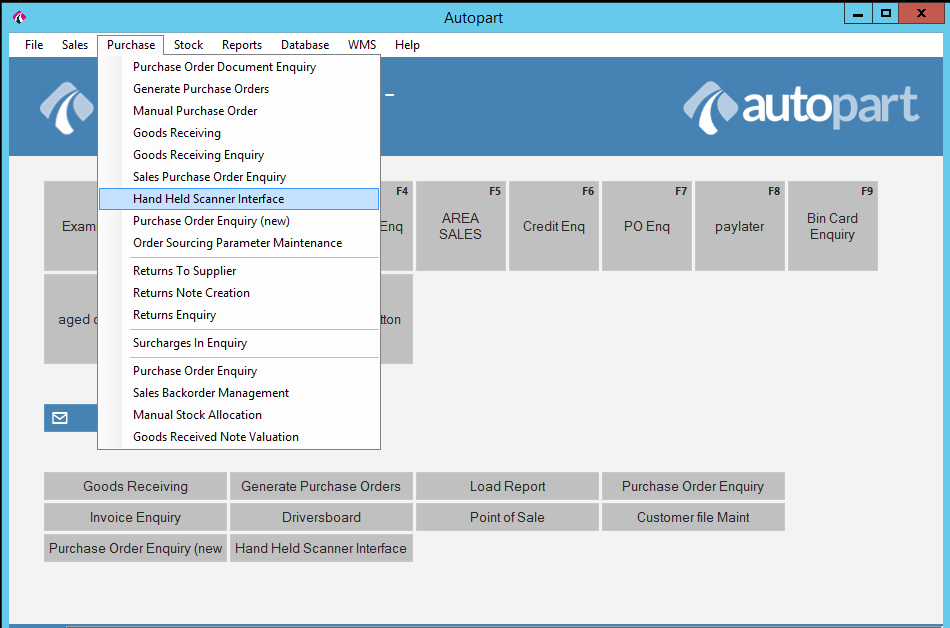
This will open up the screen below.
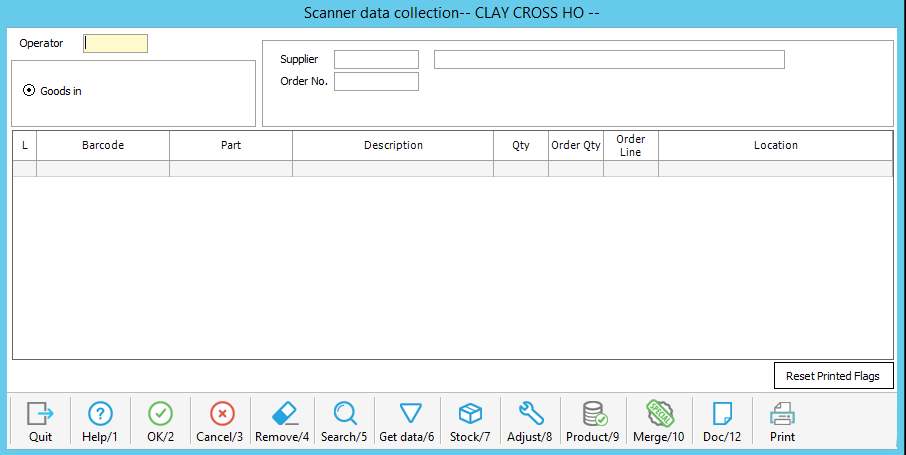
Before scanning any products, please enter the supplier code in the supplier box. This can be done by either typing the account number if known or by typing the first few letters of the name and pressing "search/5".
Once you have filled in the supplier, pressing tab will move you on to the "Order No." box, again this can either be typed straight in if it is on the paperwork from the supplier or you can press "Search/5" and the following screen will appear.
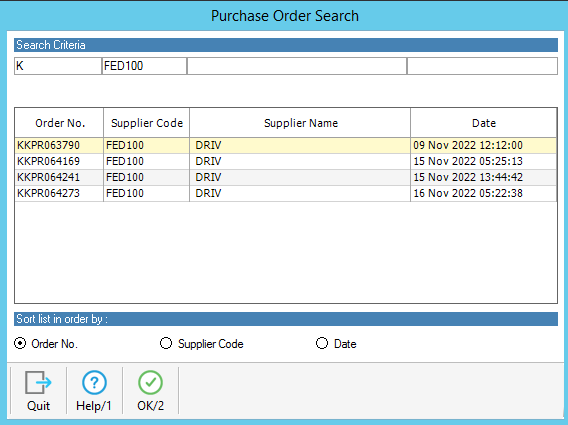
You can then select the relevant order and press "OK/2".
This will then take you to the previous screen (shown below) with the order number filled in.
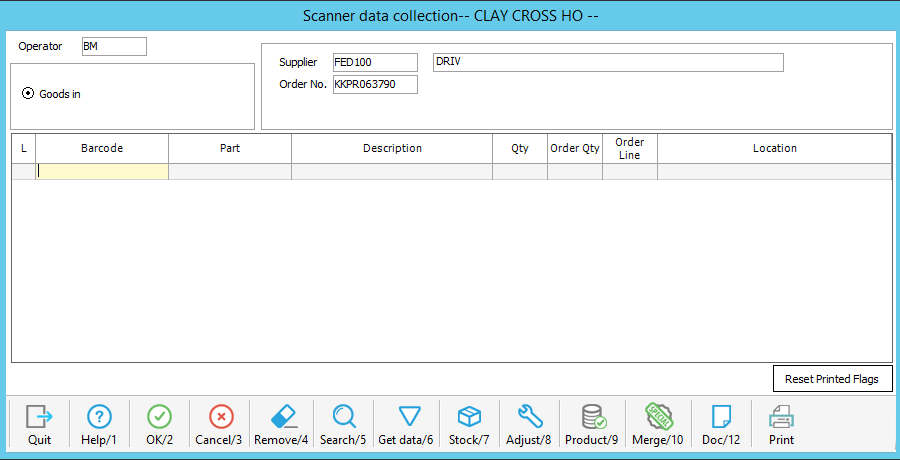
Pressing tab will take you to the "Barcode" box as highlighted above.
At this point you can then proceed to scan the parts that have been delivered from the supplier, as you scan the parts it will fill the grid as below.
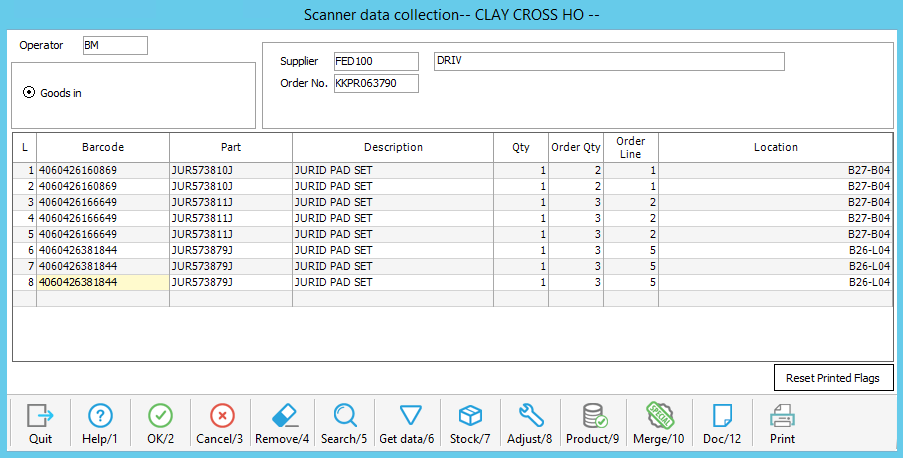
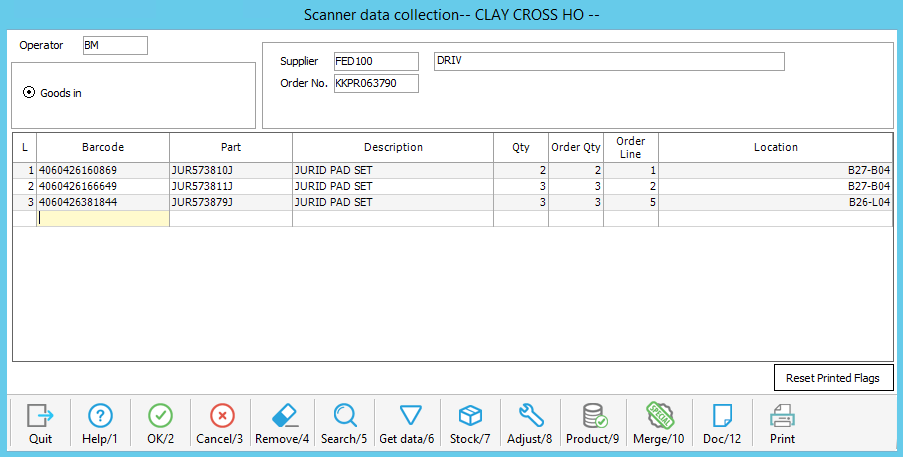
Once you have scanned all the parts that have been delivered you can then use the "Merge/10" option to combine the multiple scans for the same part numbers into a single line.
Any Barcodes that are not recognised will appear on the grid in red as below.
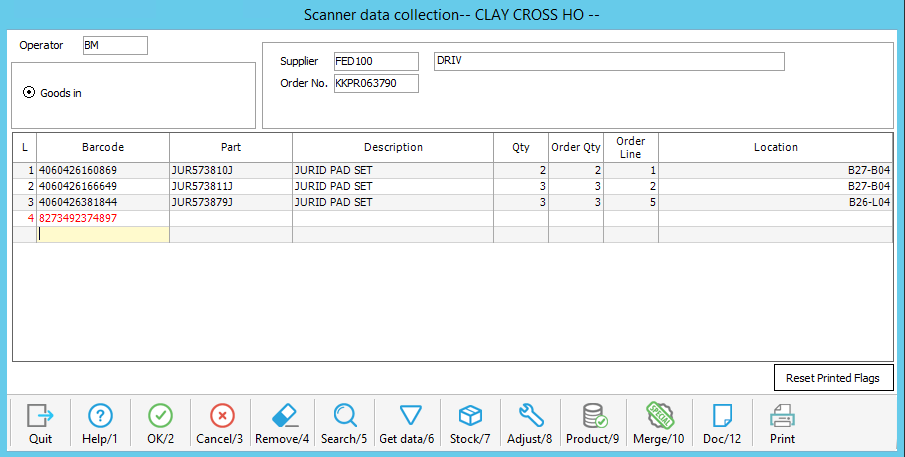
At this point you will need to establish which part you have scanned that has not been recognised and remove the line using "Remove/4". then any parts that have not scanned can be entered manually onto the bottom of the grid.
once all the parts have been scanned and merged on the grid it is good practice to check the number of lines on the delivery note and make sure it matches the screen.
Once you are happy that all parts have been scanned and showing on the grid correctly, you can press "OK/2" which will take you to the goods receipt screen
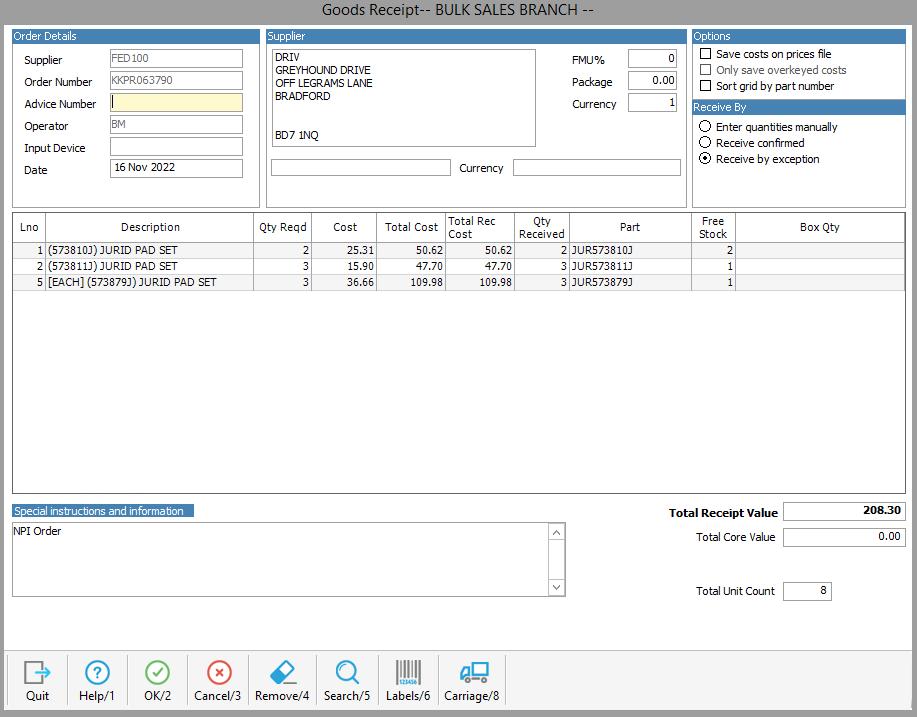
from here you can enter the advice note number / delivery note number from the supplier paperwork.
Then in the "Input Device" box enter / Scan "SCANNED" to confirm the order has been booked in using the hand held scanner.
Then press "OK/2" to finalise the order, you will then be asked if you would like to print the GRN document and if you want to print labels.