
Goods Receiving (Non WMS)
Open the "Goods Receiving" option from the Autopart Purchase menu.
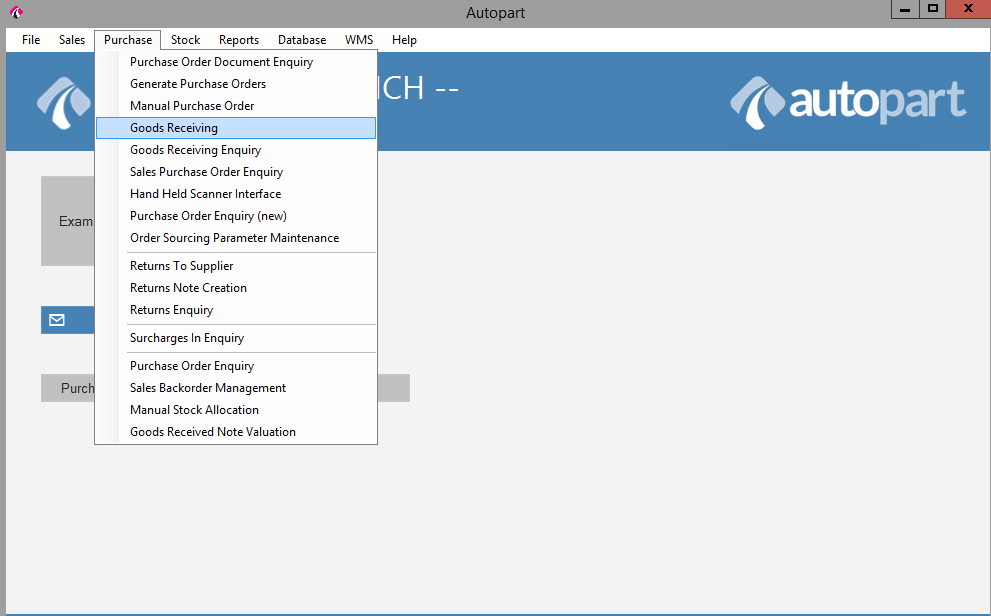
This will open up the screen below.
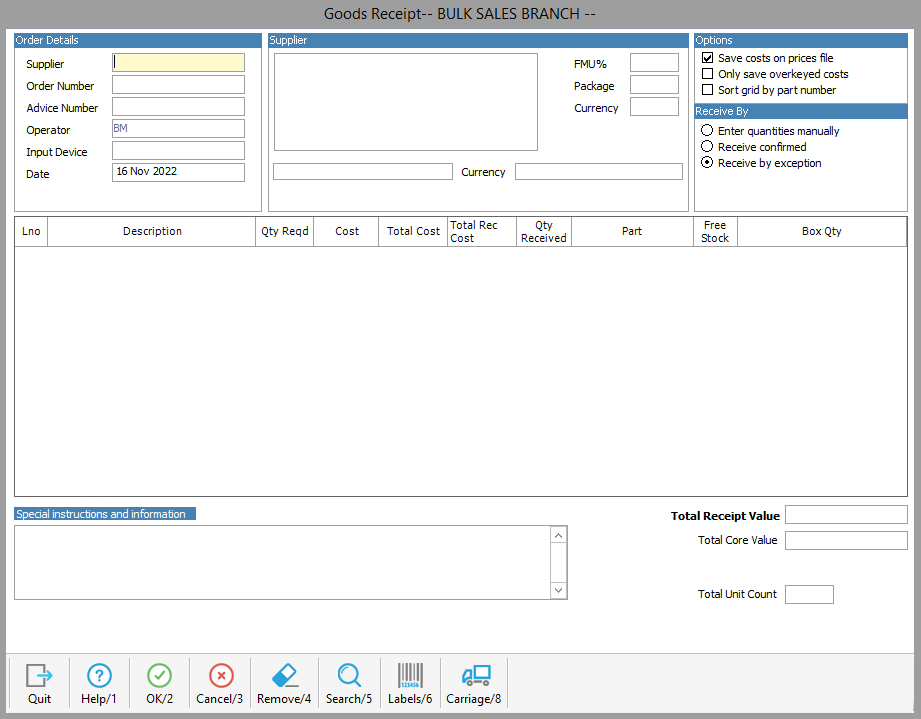
Enter the supplier code in the supplier box. This can be done by either typing the account number if known or by typing the first few letters of the name and pressing "search/5" then double click on the correct supplier.
The supplier code and details will then be displayed on screen.
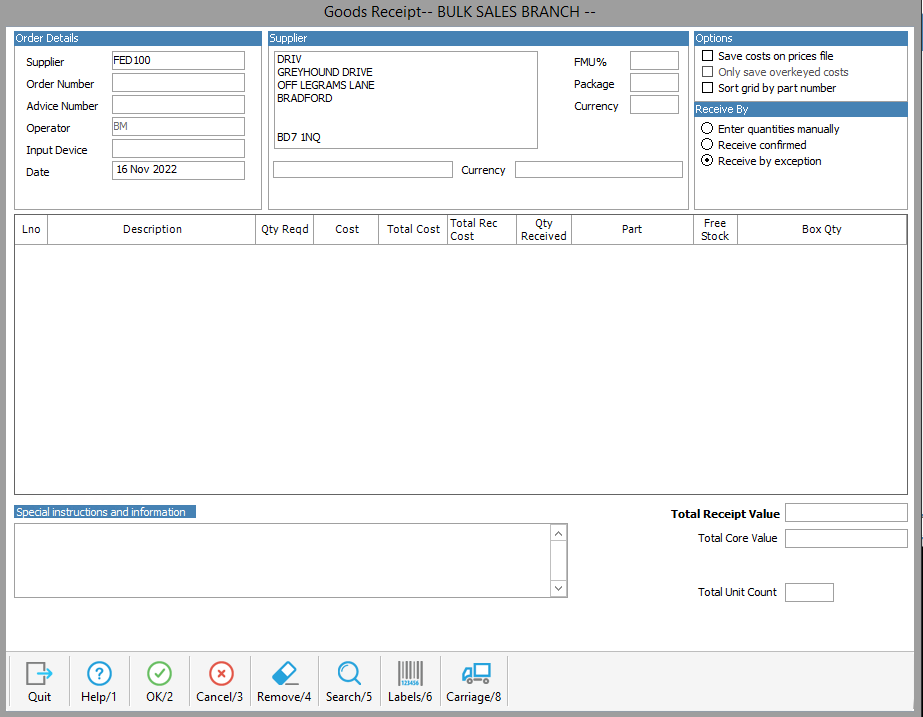
Next enter the order number if known, alternatively use "Search/5" to display all the current purchase orders for the selected supplier.
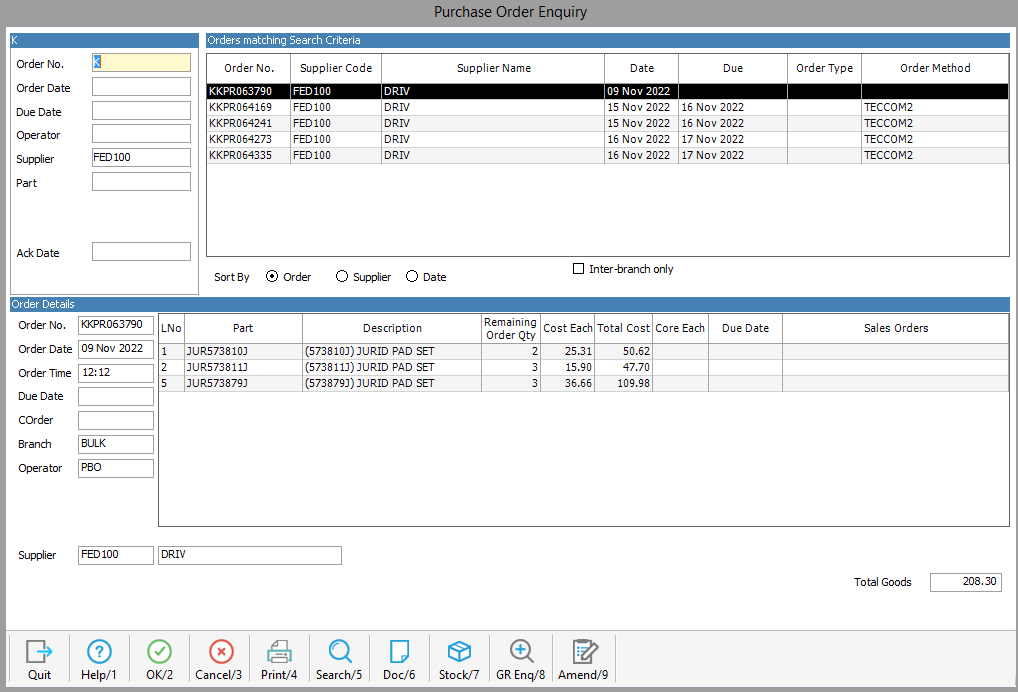
Once you have located the correct order, click on the order line to highlight it and select "OK/2", this will take you to the "Goods Receipt" screen.
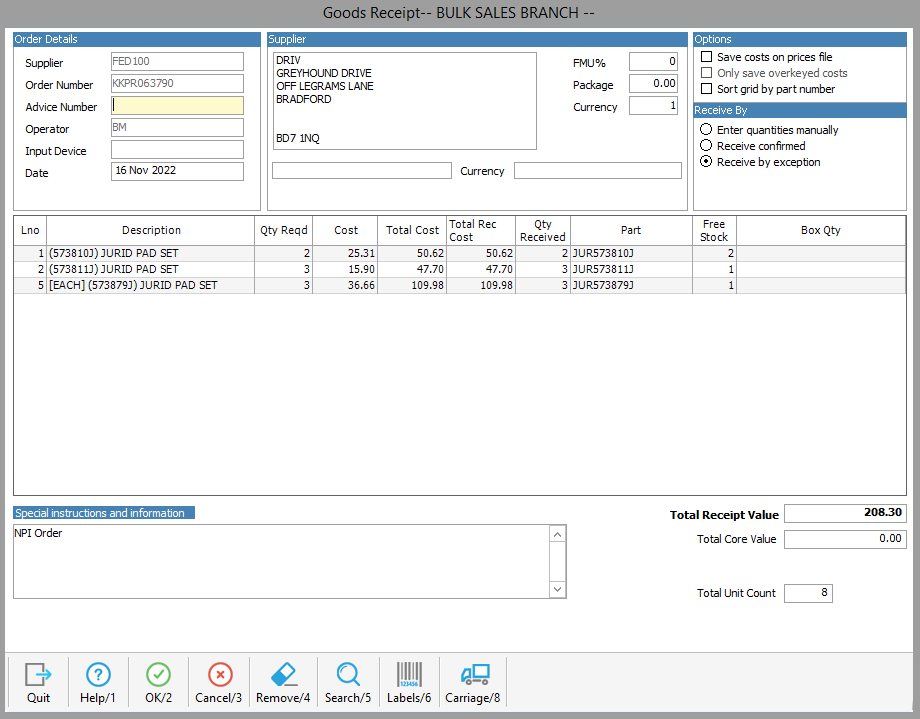
from here you can enter the advice note number / delivery note number from the supplier paperwork.
Then in "Input Device" type "MANUAL" to confirm the method use to receive the order.
next you will need to enter the "Qty Received" this defaults to the quantity that has been ordered from the supplier, shown as "Qty Reqd".
On larger orders it's good practice to zero all "Qty Received" and add them back in as you work down the supplier delivery note, checking against the "Qty Reqd", this ensures you only book in what has been delivered (see below example).

Once all the quantities have been added it is good practice to check the number of lines on the delivery note and make sure it matches the screen.
Once you are happy that all the parts have been added then press "OK/2" to finalise the order, you will then be asked if you would like to print the GRN document and if you want to print labels.