
Once configured manifests will replace the old style drivers sheets, these will then be scanned back in to MAM and be visible against the invoice as an attachment.
Departing Runs with Manifests
The invoices should be arranged in the MAM Driversboard in the order you wish the driver to complete the run, once you are ready to depart the van select the drop down and click "Depart This Run".
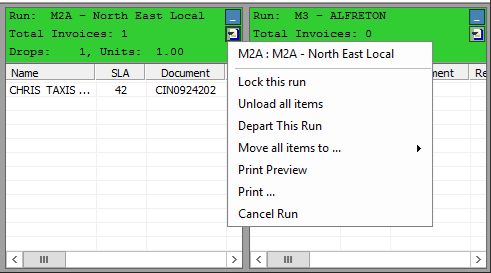
The driver and van can then be selected from the drop down box, then click "Depart/4" to depart the run.

Once the run has been departed a delivery manifest will automatically print, this is then passed to the driver to complete then run.
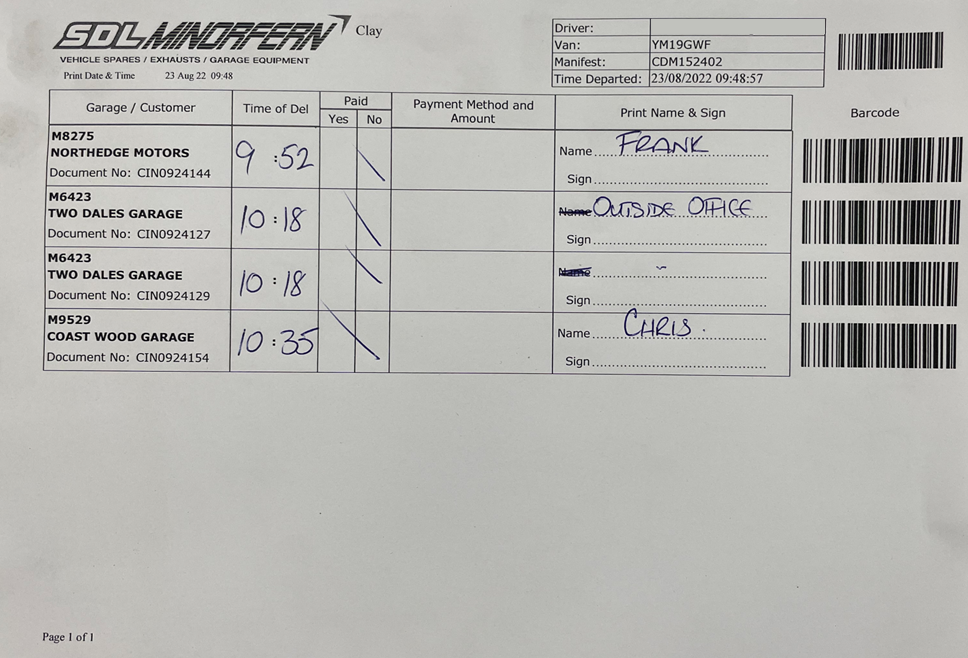
Scanning Manifests to MAM
To scan manifests back in to MAM you need to make sure the "Paper Stream Click Scan" application is running in the background on your PC. This can be checked by looking for the icon on the taskbar.
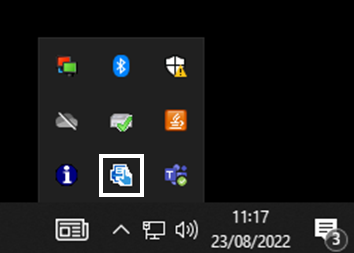
If this icon is not visible you need to double click on the application icon on your desktop.

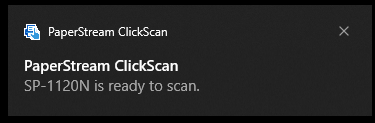
You should then receive the following notification to confirm it's running (This step only needs to be completed once a day or after the PC has been restarted).
Signed manifests that have been returned from the drivers can then be placed in to the scanners, these need to be placed in the scanners face down with the barcodes towards the scanner (this is to ensure the correct orientation).
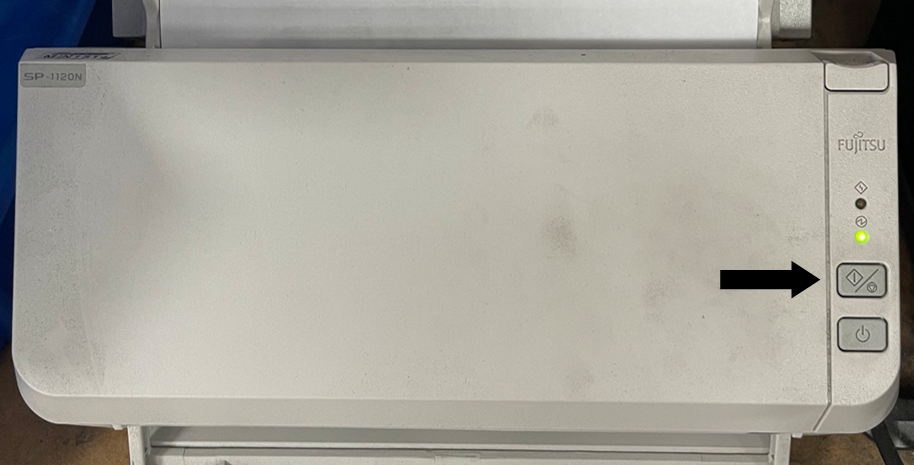
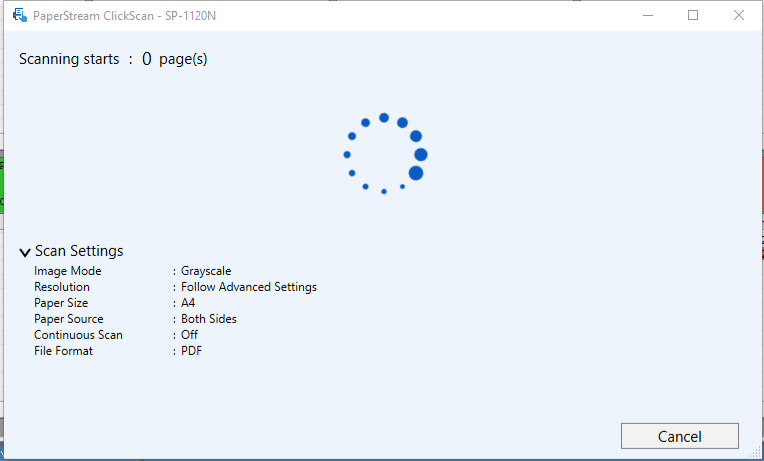
once all the documents are loaded press the scan button on the unit, the pages will then feed through the scanner and a processing page will be displayed on the PC
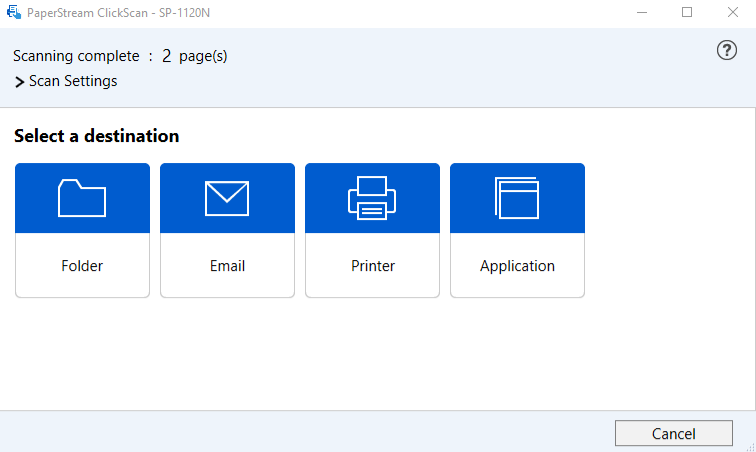
Once all the pages have finished scanning you then need to select the destination where they will be saved, select "Folder" from the options.
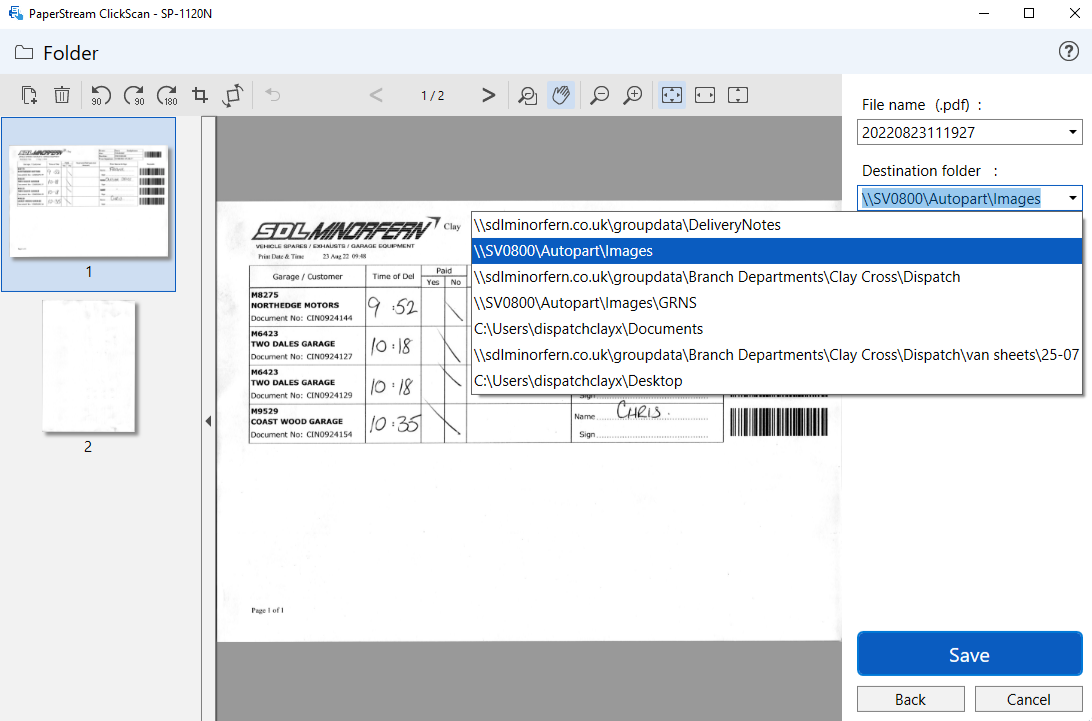
Then from the "Destination Folder" select "\\SV0800\Autopart\Images" and click "Save".
The paper manifests can now be destroyed via the paper shredding bins.
Viewing Manifests within MAM
When manifests are scanned they are automatically attached to the invoices within MAM.
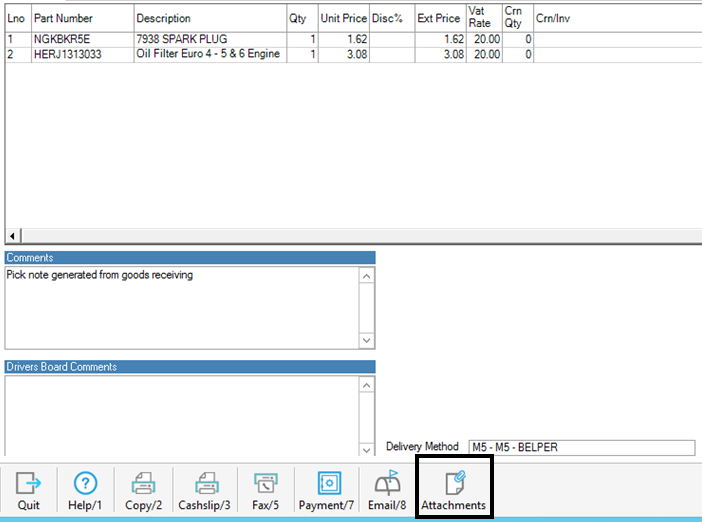
To view a manifest firstly find the invoice you wish to view and select "Attachments"
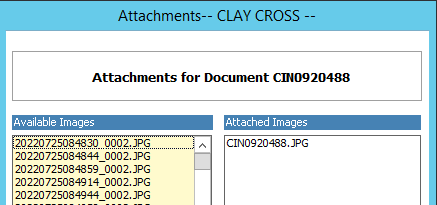
The area "Attached images" will show all the documents relating to the invoice number you have selected.
To view the document click on the image, this will then display the manifest.
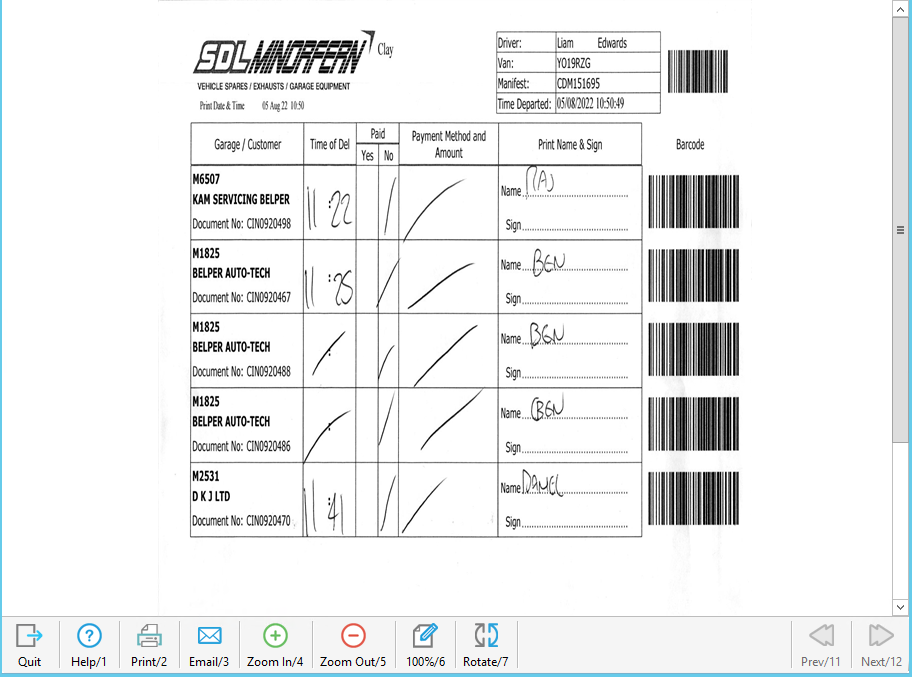
From here the manifest can be printed or emailed as required.